Premiere Pro system requirements: what the specs mean for your computer
Compare Adobe Premiere Pro minimum and recommended requirements for Windows and Mac, then separate GPU, memory, SSD, network and release checks before you buy or update.
Adobe Premiere (formerly Premiere Pro) needs at least Windows 11 v24H2, 8 GB of RAM, 4 GB of GPU memory and an Intel 6th Generation or AMD Ryzen 1000 Series CPU with AVX2 on a Windows x86 PC. A Mac needs macOS Sonoma 14, 8 GB of memory and an Intel 8th Generation CPU or Apple silicon A18 or later, as in the MacBook Neo. Those rows cover HD editing only, so I'd buy to Adobe's recommended specs: 16 GB of RAM for HD or 32 GB or more for 4K on Windows, or an M1 Pro or newer Mac with 16 GB.
Minimum and recommended specifications
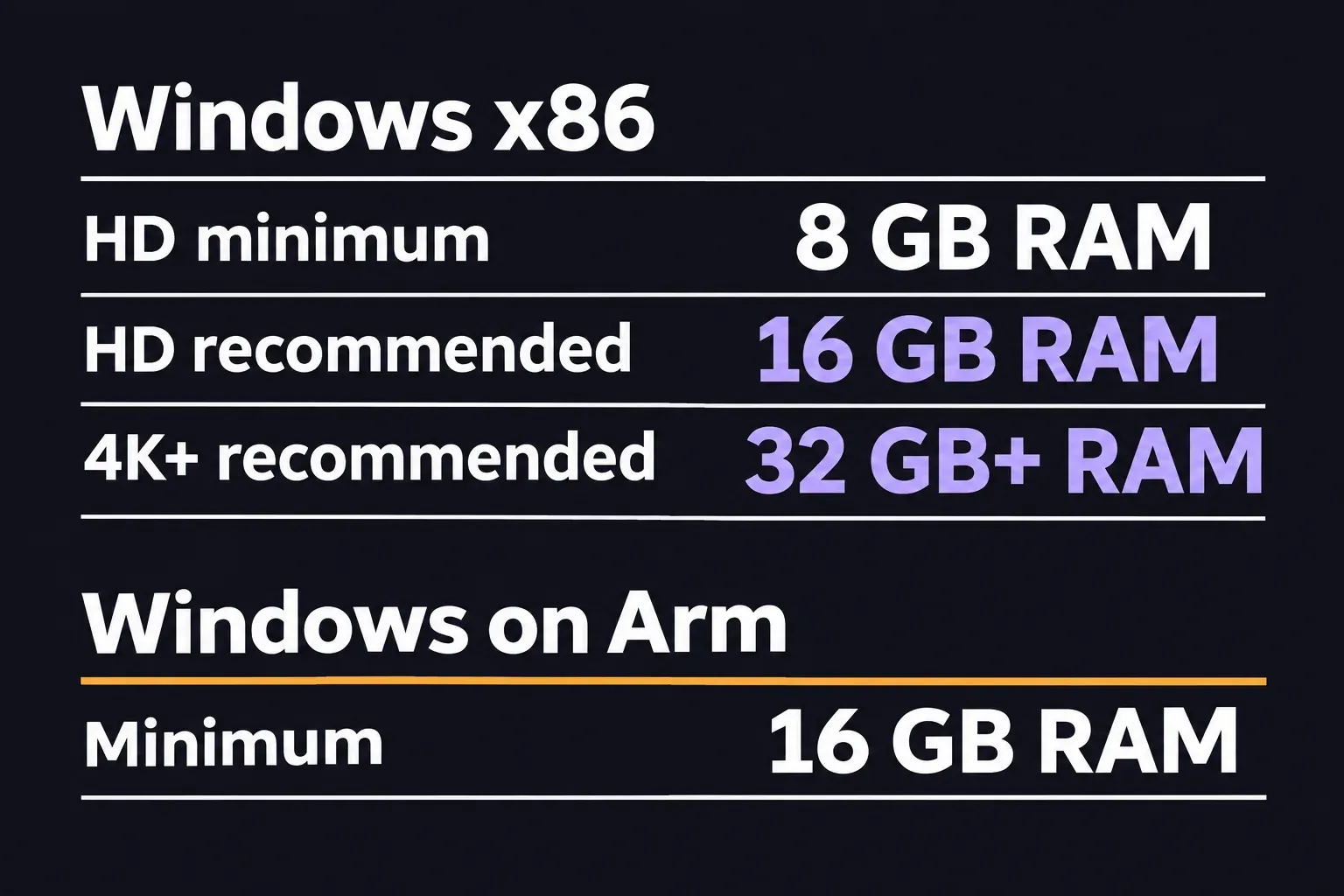
For a Windows x86 computer, the current minimum is an Intel 6th Generation or newer CPU or an AMD Ryzen 1000 Series or newer CPU with AVX2, Windows 11 v24H2, 8 GB of RAM and a supported GPU path with at least 4 GB of GPU memory. Adobe's recommended row raises the processor to an Intel 11th Generation or newer CPU with Quick Sync or an AMD Ryzen 3000 or Threadripper 3000 series or newer, 16 GB of RAM for HD, 32 GB or more for 4K and 8 GB of GPU memory.
Macs need their own comparison. Adobe lists an Intel 8th Generation or newer CPU with AVX2, macOS Sonoma 14 and 8 GB of RAM in the minimum Intel row. The Apple silicon minimum cell literally says "Apple silicon A18 or later (Apple silicon used in MacBook Neo systems)," while the recommended CPU cell says "Apple silicon M1 Pro, M1 Max, M1 Ultra, or newer." The Apple silicon section below answers the base M1–M4 question.
The rest of the decision is easy to miss: leave at least 8 GB free for installation plus extra temporary space, use a fast internal SSD for the app and cache, keep media on a high-speed drive, and check the GPU driver and network row when your media is shared. The details below explain each condition.
Read the table's scope first
Adobe's current requirements list seven releases of Adobe Premiere, from 26.0 to 26.5.2, and an older tutorial or a future build can name different numbers. The page labels the minimum column for HD editing and the recommended column for HD, 4K or higher. A minimum row is a compatibility floor for that scope, and the footage section below shows why the same computer can play one camera's files smoothly and stutter on another's.
Windows requirements, row by row
Windows x86 minimum
| Part | Adobe minimum row |
|---|---|
| Processor | Intel 6th Generation or newer, or AMD Ryzen 1000 Series or newer, with AVX2 support. |
| Operating system | Windows 11 v24H2. |
| Memory | 8 GB RAM. |
| GPU | NVIDIA Maxwell generation (2014) or newer with at least 4 GB of GPU memory, or Intel/AMD GPU with at least 4 GB of GPU memory. |
| Storage | 8 GB available for installation, plus extra free space during installation; removable flash storage is not supported for the install. |
| Display and sound | 1920×1080 display; ASIO-compatible or Microsoft Windows Driver Model sound. |
| Network | 1 Gigabit Ethernet for HD-only network-storage workflows. |
The Windows-on-Arm minimum is a separate branch. Adobe names a Qualcomm Snapdragon X series processor, Windows 11 v24H2 with OS Build 26100.2033, 16 GB of memory and a Qualcomm Adreno GPU driver 31.0.121.1. Keep that branch attached to the Arm device instead of flattening it into the x86 8 GB row.
Windows recommended
| Part | Adobe recommended row |
|---|---|
| Processor | Intel 11th Generation or newer with Quick Sync, or AMD Ryzen 3000 or Threadripper 3000 series or newer. |
| Memory | 16 GB RAM for HD media; 32 GB or more for 4K and higher. |
| GPU | 8 GB of GPU memory. |
| Storage | Fast internal SSD for the app and cache, plus an additional high-speed drive for media. |
| Display and sound | 1920×1080 or greater; DisplayHDR 1000 for HDR workflows; ASIO-compatible or Microsoft Windows Driver Model sound. |
| Network | 1 Gigabit Ethernet for HD shared storage; 10 Gigabit Ethernet for a 4K shared-network workflow. |
Adobe's table gives a memory and GPU-memory recommendation, not a list of approved graphics-card models. A card's decoding support for your footage matters as much as its memory, and the footage table below shows which GPU families decode which H.264 and HEVC formats.
Mac requirements need two separate readings
Intel Mac
The minimum Intel Mac row lists an Intel 8th Generation or newer CPU with AVX2, macOS Sonoma version 14, 8 GB RAM, and either integrated graphics or AMD discrete graphics with 4 GB of GPU memory. It also lists 8 GB of available installation space plus additional space during installation, and a 1920×1080 display. For HD-only network storage, the table lists 1 Gigabit Ethernet.
That row is narrower than many older guides still circulating. A page that names Catalina, an Intel 6th Generation CPU or 2 GB of VRAM may describe an earlier requirements set. Match the requirements to the release list above instead of carrying those numbers forward.
Apple silicon
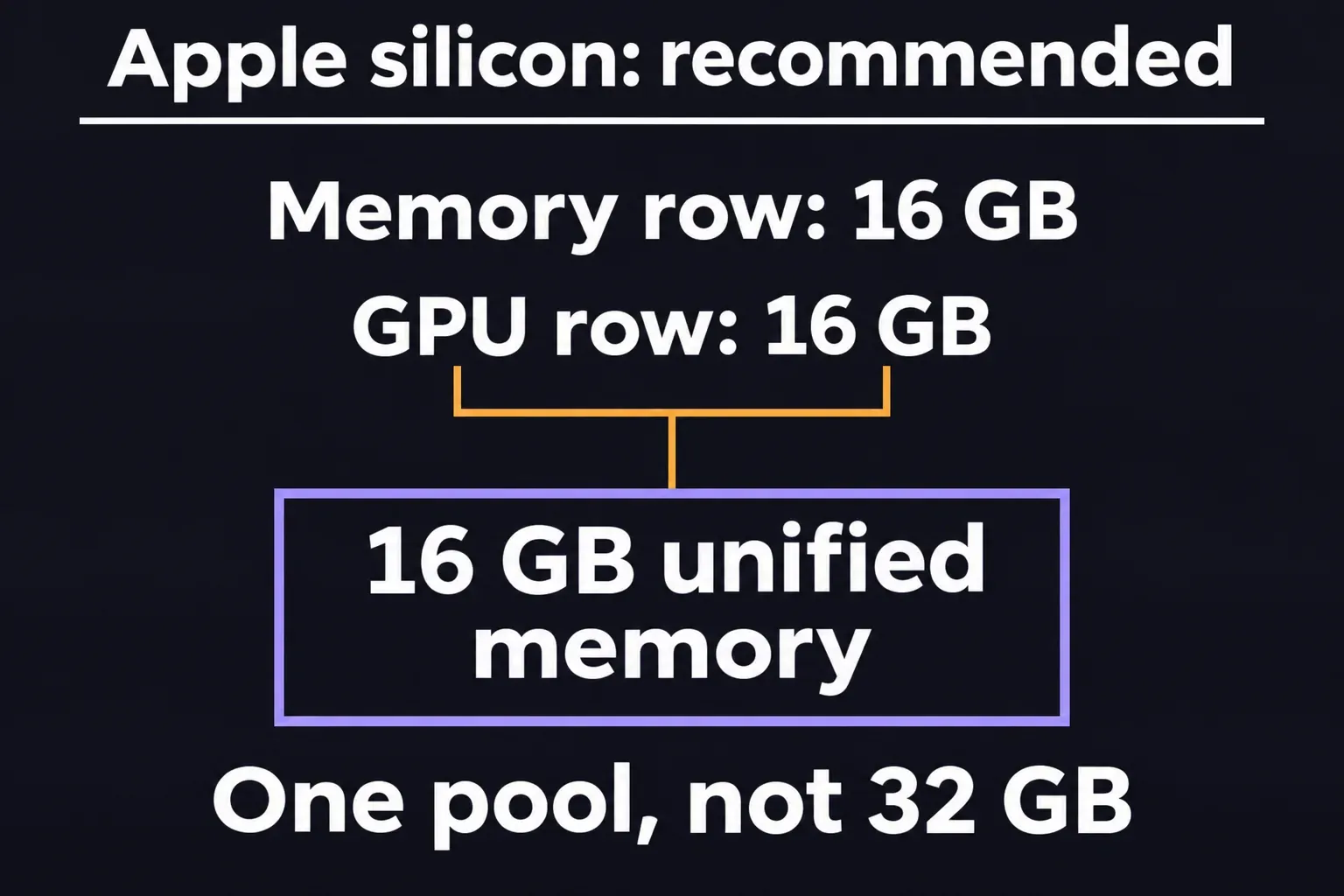
Adobe's current table lists Apple silicon M1 Pro, M1 Max, M1 Ultra or newer in the recommended CPU cell, and 16 GB of unified memory in the recommended memory and GPU cells. The minimum GPU cell lists 8 GB of unified memory. Unified memory is one pool; do not add the GPU number to a separate RAM number as if the Mac needed both.
So does a base M1, M2, M3 or M4 Mac meet the minimum? Adobe's table doesn't name those chips in either column: the minimum CPU cell lists only Apple silicon A18 or later, as used in MacBook Neo systems, and the recommended cell starts at M1 Pro, M1 Max and M1 Ultra. Premiere runs natively on Apple silicon, and since version 24.0 Adobe's video apps no longer support running Intel builds through Rosetta. If you're buying, I'd go straight to an M1 Pro or newer with 16 GB of unified memory: it's the first Apple silicon configuration Adobe recommends and the one its codec guidance names for 10-bit 4:2:2 hardware decoding. If you already own a base M-series Mac, play your own footage before you pay for an upgrade, using the check at the end of this guide.
GPU and driver requirements
Premiere uses the GPU for hardware-accelerated decoding, timeline effects and compositing, rendering for playback and export, hardware-accelerated encoding, and some AI and machine-learning processing. Adobe says support varies by GPU manufacturer and device capabilities, so a memory number alone cannot prove that a particular H.264 or HEVC profile will use hardware acceleration. The GPU and driver guidance is the right place to check the driver path for your system.
For supported NVIDIA GPUs, Adobe recommends the latest Studio driver. The page names a Game Ready driver as the exception for 900-series and older cards, and it records that Kepler mobile GPUs no longer receive driver updates. On Windows, Adobe points to the GPU manufacturer's current driver. On macOS, graphics drivers arrive with macOS system updates.
For H.264 and H.265, hardware decoding and encoding depend on the GPU and device. Adobe's codec guidance specifically names Apple silicon M1 Pro, M1 Max, M1 Ultra or newer for hardware-accelerated H.264/H.265 encoding and decoding, including 10-bit 4:2:2 decoding. It also says HEVC HLG 4:2:0 10-bit encoding still uses software on that path. The format and profile are part of the decision, not an afterthought.
If your system has 8 GB or less of RAM and an integrated Intel GPU, Adobe warns that hardware decoding can be limited with CPU fallback and recommends 16 GB or more for that case. On Windows, to enable the documented H.264/HEVC decoding option, open Edit > Preferences > Media, select H264/HEVC hardware accelerated decoding (requires restart), choose OK and restart Premiere. Available acceleration still depends on the GPU and codec profile.
Match the specs to your footage
Two computers that meet the same row can play the same timeline very differently, because the footage decides whether the GPU or the CPU decodes it. Puget Systems' hardware decoding tables show that support depends on bit depth and chroma subsampling as much as on H.264 or HEVC itself. The difference is easy to feel: in Puget's 2020 decoding tests, scrubbing H.264 and HEVC was very choppy with software decoding and smooth with hardware decoding, and reverse playback needed hardware decoding.
| Footage | Hardware decoding in Premiere | What I'd plan for |
|---|---|---|
| H.264 8-bit 4:2:0, HEVC 8-bit or 10-bit 4:2:0 | Every GPU family, Intel Quick Sync generation and AMD Ryzen integrated GPU in Puget's tables. | The lightest case. Puget names H.264 8-bit 4:2:0 from GoPro, DJI Osmo Action and Mavic drones as lighter footage. |
| HEVC 10-bit 4:2:2 | NVIDIA RTX 50 (added in Premiere 25.3), Intel Arc A/B, Quick Sync on 11th–14th Gen Intel and Core Ultra 2, and Apple silicon M1 Pro or newer. Not GTX 10, RTX 20/30/40, Radeon 5000–7000, Ryzen 7000/9000 graphics or 10th Gen Quick Sync. | On Windows, pick an Intel 11th Generation or newer CPU with Quick Sync, an Arc card or an RTX 50 card. On a Mac, pick an M1 Pro or newer. |
| H.264 10-bit 4:2:0 or 4:2:2 | On Windows, only NVIDIA RTX 50 (added in 25.3). Apple silicon M1 Pro or newer decodes 10-bit 4:2:2. | Expect the CPU to decode it on most PCs. Plan proxies, or choose an RTX 50 card or an M1 Pro-class Mac. |
| Any 8-bit 4:2:2 or 4:4:4 H.264 or HEVC, and 12-bit HEVC | None of the groups in Puget's tables. | The CPU decodes it everywhere, so proxies or a faster CPU are the levers. |
Puget's tables cover PC graphics and processors and were last updated in March 2025; the Apple silicon entries come from Adobe's codec guidance above. Premiere 26.5 later added hardware 10-bit 4:2:2 AVC and HEVC decoding in MXF on NVIDIA Blackwell GPUs.
Find out what you shot before you compare hardware. MediaInfo shows the bit depth and chroma subsampling those tables use; Puget notes you'll usually need its Tree view. On Windows, Puget's decoding check works once the hardware decoding option above is on: import a clip into a bin, press Alt+Ctrl+F12 to open the Debug Monitor, scroll to Importer.MPEG and open the clip in the Source Monitor. If the SW Frames Decompressed count climbs, the CPU is decoding that format.
Phone clips add one more catch. The iPhone footage in Puget's tests was H.264 or HEVC with a variable frame rate, which made the media harder for Premiere to process, and at 4× forward playback even hardware decoding struggled with it. Screen recordings have their own fix list: Premiere 26.5 fixed dropped frames during playback of MKV files recorded with OBS.
When the CPU ends up decoding your main camera format, a new computer isn't the only fix. Proxies give Premiere lighter editing copies, and by default it still exports from the full-resolution media with proxies on. For effect-heavy sections, a red render bar marks footage that likely won't play back smoothly; set In and Out points and choose Sequence > Render Effects In to Out (Enter) to render that section. Keep the build current too: Premiere 26.5.2 fixed visual artifacts with some Long GOP 10-bit 4:2:2 media on Windows systems that lack GPU acceleration for that format.
RAM, storage and network are different constraints
Do not turn the 8 GB installation requirement into a storage plan. Adobe requires at least 8 GB available plus extra space while installing, and it says the app cannot be installed on removable flash storage. The recommended rows call for a fast internal SSD for the app and cache and an additional high-speed drive for media. The storage recommendations describe how to arrange those roles.
- System and app: keep the operating system and Premiere on a fast internal SSD.
- Media: use a high-speed drive for source footage and active project media. Adobe's guidance allows a fast external drive when internal space is limited.
- Media Cache: a separate SSD is useful when three drives are available. If only two drives are available, Adobe says media and cache may share one drive. In a shared environment, keep the cache on local drives.
- Shared storage: Adobe lists 1 Gigabit Ethernet for HD-only work and 10 Gigabit Ethernet for a 4K shared-network workflow.
For a two-drive setup, I'd put the OS and app on the system SSD and let media and Media Cache share the second drive, following Adobe's storage guidance.
On Windows, 8 GB is the x86 minimum, 16 GB is the HD recommendation and 32 GB or more is the 4K-and-higher recommendation. Windows on Arm has a 16 GB minimum in the table. On Mac, the Apple silicon entries use unified memory, while the Intel entry uses RAM and a separate integrated or AMD GPU condition.
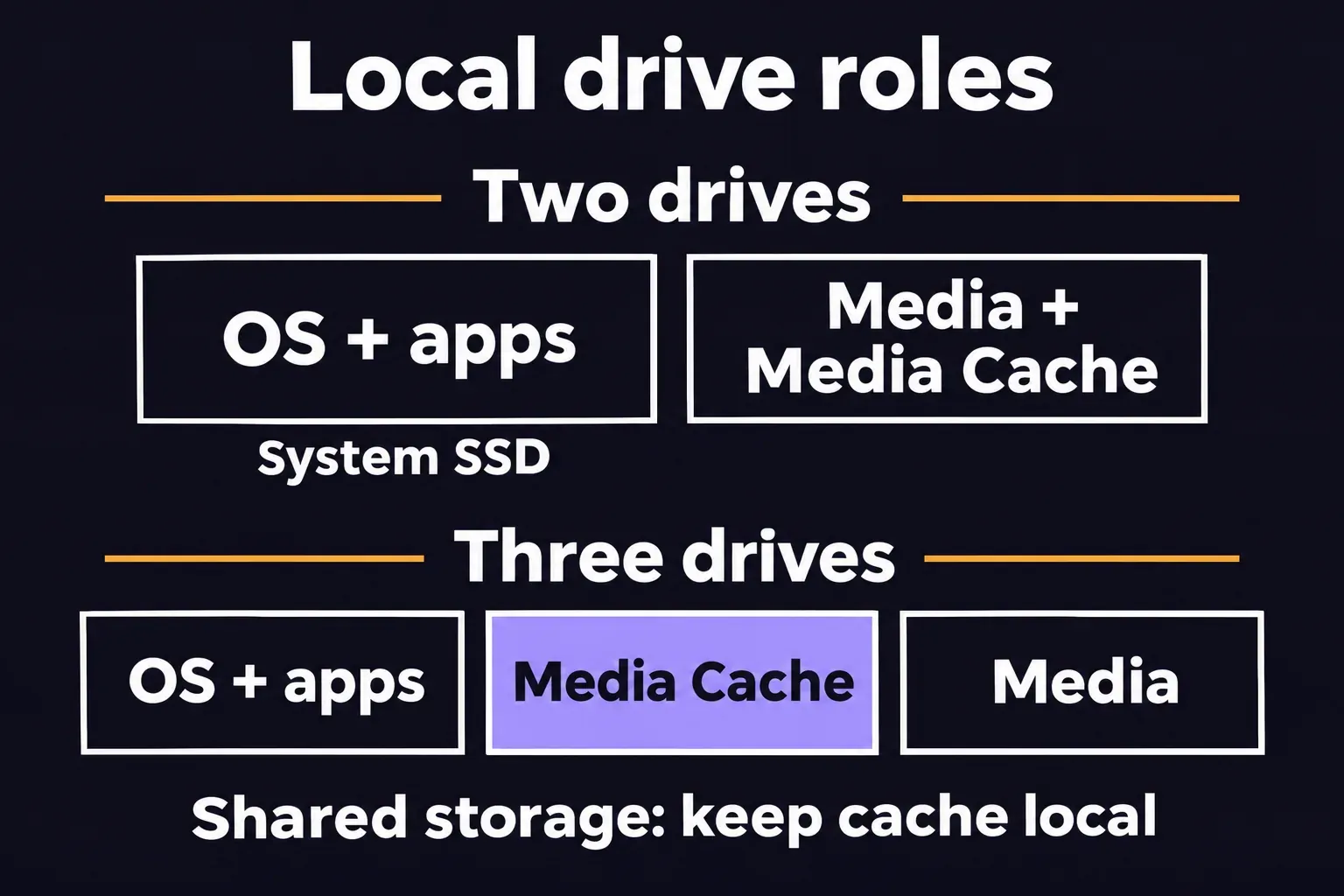
What published tests show about RAM and the minimum Mac
Two buying questions are worth settling with measurements: how much 16 GB holds Premiere back, and whether the minimum Mac can carry real projects. One benchmark lab and three MacBook Neo reviews answer them.
| Test | Setup | Result |
|---|---|---|
| Puget Systems RAM capacity tests, June 2026 | Premiere 26.2.2 and PugetBench for Premiere Pro 2.0.1 on a Ryzen 9 9950X3D2 with an RTX 5080; 16 GB and 32 GB simulated on a 64 GB Windows system. | 16 GB trailed 32 GB and 64 GB by 7% overall, 12% on LongGOP media and 14% on RAW. Intraframe formats such as ProRes and GPU effects showed no difference. |
| Macworld's MacBook Neo stress test, March 2026 | MacBook Neo, 8 GB: a 67-minute 1080p podcast edit with trims, lower thirds, basic multicam and audio cleanup, then 20 minutes of iPhone 17 Pro Max 4K 60 fps footage with basic edits, titles, transitions and color. | No stalls in either edit. The 1080p export took 31 minutes, about 10 minutes longer than on an M5 Max MacBook Pro. |
| Matt Johnson's Neo vs M4 Air comparison, March 2026 | Base MacBook Neo with 8 GB against an M4 MacBook Air with 16 GB; the same 10-minute project mixing 4K, 6K and RAW footage. | Noticeably rougher scrubbing on the Neo. The render took 1:10:08 against 11:18 on the Air. |
| Creative Bloq's MacBook Neo review, March 2026 | MacBook Neo with the A18 Pro, running the reviewer's Premiere test. | The test timed out a couple of times and the pointer froze once, but the run finished. |
A 7% overall gap looks small, yet Puget still doesn't recommend 16 GB for video editing in Premiere, because its benchmark doesn't reflect real projects whose footage and edit length can fill memory quickly. Its starting point is 32 GB for lighter H.264 8-bit 4:2:0 footage and 64 GB for most other work. For a new Windows build I'd start at 32 GB, which also matches Adobe's 4K row, and go to 64 GB if you cut RAW or long LongGOP camera projects.
Across the three MacBook Neo sessions, the minimum Mac handled light 1080p work and basic 4K phone edits, then slowed sharply on mixed camera and RAW media. The export-time gap ran from about 1.5× against an M5 Max MacBook Pro in Macworld's light project to about 6.2× against a 16 GB M4 MacBook Air in Matt Johnson's heavy one. Those two numbers come from different projects and comparison Macs, so they mark the edges of a range rather than a median. My verdict: the minimum Mac is fine for learning and light edits, and for camera footage you should buy into the recommended row.
Display, audio and activation still count
Both platform tables list 1920×1080 as the minimum display and 1920×1080 or greater as the recommended display. Adobe adds DisplayHDR 1000 for HDR workflows, so that's the row to compare if you deliver HDR.
The Windows sound row names an ASIO-compatible card or Microsoft Windows Driver Model in both minimum and recommended columns. Adobe also requires an Internet connection, an Adobe ID and acceptance of the license agreement to activate and use Premiere. Those are access conditions, separate from the local CPU, RAM and GPU check.
A safe check before you buy or update
- Write down the exact Premiere release you plan to install and the media scope: HD, 4K or higher. Confirm that the release appears in Adobe's applicability line.
- Choose the right branch: Windows x86, Windows on Arm, Intel Mac or Apple silicon. Do not compare a Mac unified-memory row with a Windows GPU-memory row as if they were the same measurement.
- Compare CPU, operating system, RAM or unified memory, GPU architecture and GPU memory. If any minimum row fails, the table does not establish compatibility for that configuration.
- Check free installation space, the internal SSD, the media drive and, when applicable, the Ethernet path to shared storage. An 8 GB installation allowance is not room for a media library or cache.
- Check the current GPU or macOS driver route, then find your footage's codec, bit depth and chroma in the footage table above.
- Once the hardware rows fit, use the Premiere update guide to plan the update.
Before you spend money, put a real clip from your own camera or phone on a timeline, then play it forward, scrub it and play it in reverse. If it stutters and the Debug Monitor on Windows shows SW Frames Decompressed climbing, the CPU is decoding that format: try proxies first, and upgrade only to a GPU or chip that the footage table says decodes it.