Final Cut Pro vs Premiere Pro: which editor fits your work
Final Cut Pro suits a solo Mac editor who wants to own the app; Premiere suits Windows, mixed teams and Premiere handoffs. Compare timelines, US prices and exit terms, published export tests on Apple silicon, and how to move a cut between the two.

Pick Final Cut Pro if you edit alone on a Mac and want to own the app: it's US$299.99 once, or part of Apple's Creator Studio subscription at US$12.99 a month. Pick Adobe Premiere (formerly Premiere Pro) when you work on Windows, share projects with a mixed Mac and Windows team, or hand the cut to an editor who expects a Premiere project. Published export tests on Apple silicon put Final Cut ahead more often than not, but that lead doesn't outweigh who opens the project next.
My test is the next person in the chain. If nobody else touches your timeline, I'd buy Final Cut once and put the money a subscription would cost into storage. If an agency, a co-editor or a Windows PC is in the picture, I'd stay in Premiere, because a cut moving between these two apps needs a translator in each direction and a careful check afterwards.
Choose by platform and by who edits next
| Your situation | My pick | Why |
|---|---|---|
| You edit alone on a Mac and want to own the app | Final Cut Pro | A one-time purchase, and existing owners keep getting updates |
| You edit on a Windows PC, or the team mixes Mac and Windows | Premiere | It runs on both systems; Final Cut runs on Mac and iPad only |
| The next editor expects a Premiere project | Premiere | They open the native project, with no XML translation step |
| Your cuts are multicam or effects-heavy, on Apple silicon | Final Cut Pro | Published tests show its widest leads on exactly that work |
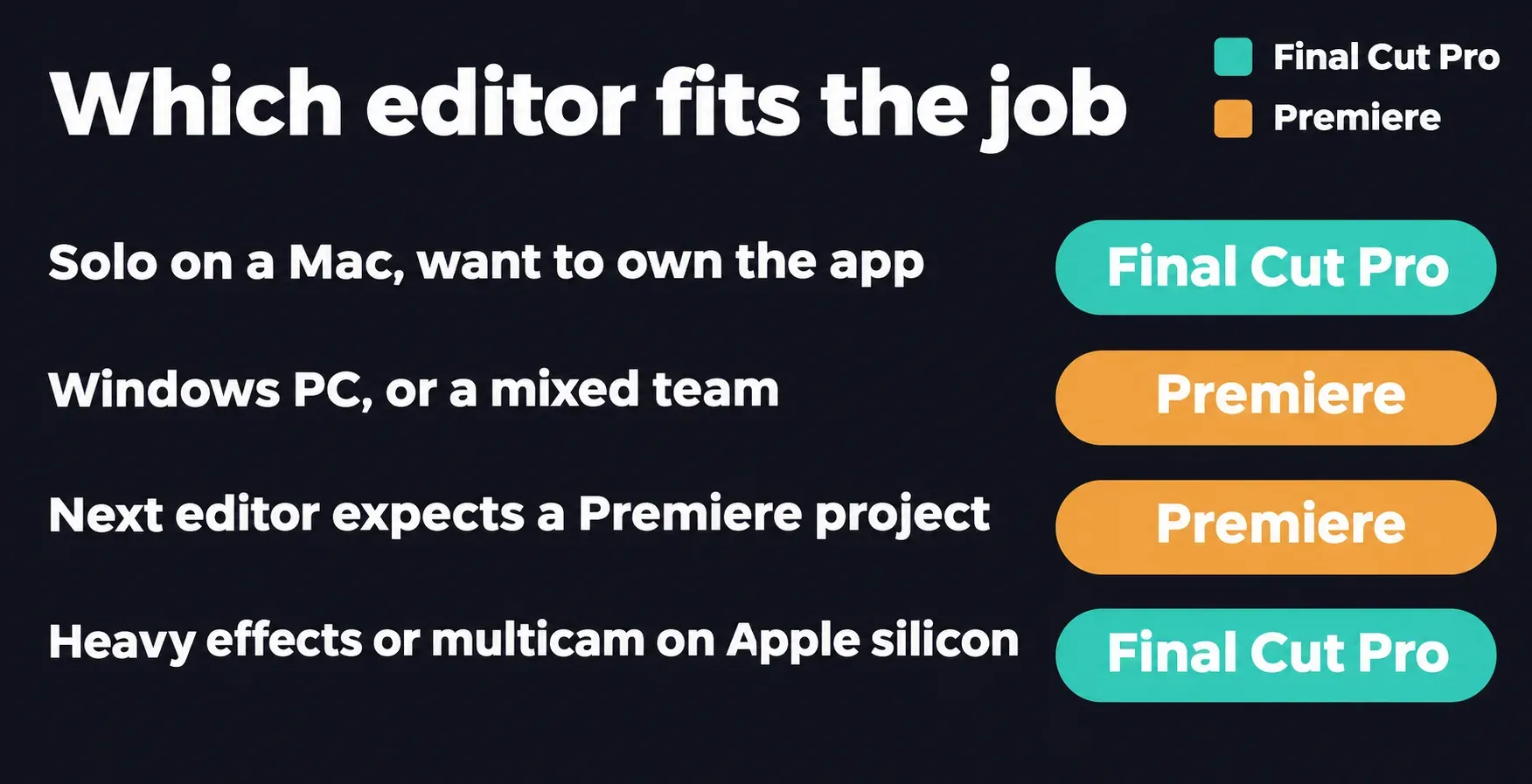
The platform row is a hard limit. Apple makes Final Cut Pro for Mac and iPad, with no Windows version. Premiere runs on Windows and macOS, and Adobe's system requirements set a separate minimum for each, from Windows 11 v24H2 and macOS Sonoma 14. Check your computer against the current release of whichever app you pick before you move a project into it.
Two ways to organize the same edit
The two timelines feel different within the first hour. Final Cut's Magnetic Timeline adjusts itself around wherever you move a clip, and its Clip Connections tie cutaways and music to a clip in the primary storyline, so you can select that clip with all its connected media and copy them together. Roles you assign during import organize the project, and the same roles later drive audio stem exports.
Premiere uses numbered tracks. A practical starting stack, from top to bottom, is V3 for a title, V2 for cutaways and V1 for the interview, with A1 for dialogue and A2 for music below. Adobe's track targeting controls on the left of the timeline decide which tracks copying and pasting, navigation and match frame act on:
- A pasted clip lands on the lowest targeted track, so with V1 and V4 targeted it goes to V1.
- Press F to match frame; with several tracks targeted, Premiere matches from the highest one.
- The Up and Down Arrow keys jump the playhead to the edit points of clips on targeted tracks, on Mac and Windows alike.
The quickest way to choose is to make the same changes in both trials: Creator Studio's 30-day trial includes Final Cut, and Premiere's desktop trial runs seven days from checkout. Use a short interview with a few cutaways and a music bed:
- Shorten one answer. Split the clip and remove a sentence from the middle.
- Move a cutaway. Slide it two sentences later and see what follows it.
- Move the music entry. Lay the music so it starts on a new line of dialogue.
- Add a title. Put a name title over the first answer.
- Play across every edit. Watch the last frame out and the first frame in, and check that the words still meet the lips.
I'd keep the app whose changes you predicted before you pressed play. If the Magnetic Timeline kept the cutaways where you expected, Final Cut suits the way you think. If you'd rather see and lock every layer yourself, Premiere's tracks will feel more natural.
What each one costs, and what leaving costs
Apple sells Final Cut two ways. The one-time Mac purchase is US$299.99, and the Creator Studio subscription bundles Final Cut Pro for Mac and iPad with Motion, Compressor, Logic Pro, Pixelmator Pro and MainStage. Premiere comes only as a subscription, at US$22.99 a month on the US single-app plan with an annual commitment billed monthly, or US$34.49 month to month.
| Option | Price | Renewal or exit |
|---|---|---|
| Final Cut Pro for Mac, one-time purchase | US$299.99 | No renewal; some premium content is for Creator Studio subscribers only |
| Apple Creator Studio | 30-day free trial, then US$12.99 a month or US$129 a year for new subscribers | Renews until you cancel |
| Premiere, annual billed monthly | US$22.99 a month (US$275.88 a year) | After 14 days, cancelling costs 50% of what's left on the year (30% of the annual commitment in California) |
| Premiere, month to month | US$34.49 a month | Cancel any time; service runs to the end of the paid month |
Fourteen payments on Premiere's annual plan, US$321.86, pass the one-time Final Cut price, and a year of Creator Studio costs US$146.88 less than a year of Premiere. Against Creator Studio itself, the purchase wins in the third year: two yearly payments come to US$258, three to US$387. Existing Final Cut owners keep getting updates. These are US rates before tax.
The exit terms differ too. Under Adobe's US subscription terms, the annual plan refunds in full within 14 days of the first order and charges the early-cancellation fee after that, with service to the end of that billing month. An Apple subscription stops on the web or through Apple's cancellation steps on a device: on an iPhone, open Settings, tap your name, then Subscriptions. Apple advises cancelling a trial at least 24 hours before it ends.
If you'll edit on a Mac for more than two years, I'd buy Final Cut outright. Creator Studio makes sense when you'll also use Logic Pro or the iPad edition. For one Premiere client job with a fixed end date, I'd pick month to month, because stopping it costs nothing beyond the current month.
Export tests: Final Cut usually leads on Apple silicon
I pooled six H.264-to-H.264 export runs from two publishers, on six different Apple silicon Macs. Premiere took a median 1.8x as long as Final Cut, with a range of 0.97x to 2.42x, and Final Cut finished first in five of the six.
| Test and Mac | Final Cut | Premiere | Premiere vs Final Cut |
|---|---|---|---|
| Simon Says: 3:50 4K H.264 timeline with transitions and color, M1 Max MacBook Pro, 64GB | 1:09 | 1:14 | 1.07x |
| ProVideo Coalition: 17-minute 4K H.264 multicam in a 1080 timeline, Mac Studio M1 Ultra | 1:58 | 1:54 | 0.97x |
| Same test, Mac Studio M2 Max | 1:46 | 2:47 | 1.58x |
| Same test, 14-inch MacBook Pro M2 Max | 2:09 | 4:20 | 2.02x |
| Same test, 16-inch MacBook Pro M3 Max | 1:15 | 2:49 | 2.25x |
| Same test, Mac mini M2 | 2:16 | 5:29 | 2.42x |
The ProVideo Coalition rows come from Scott Simmons' November 2023 M3 Max review, which exported with the H.264 YouTube preset in Premiere 24.0, a beta build on the older Macs. Simon Says' comparison doesn't give app versions. I left out the review's Intel iMac Pro row, since this comparison is about Apple silicon.
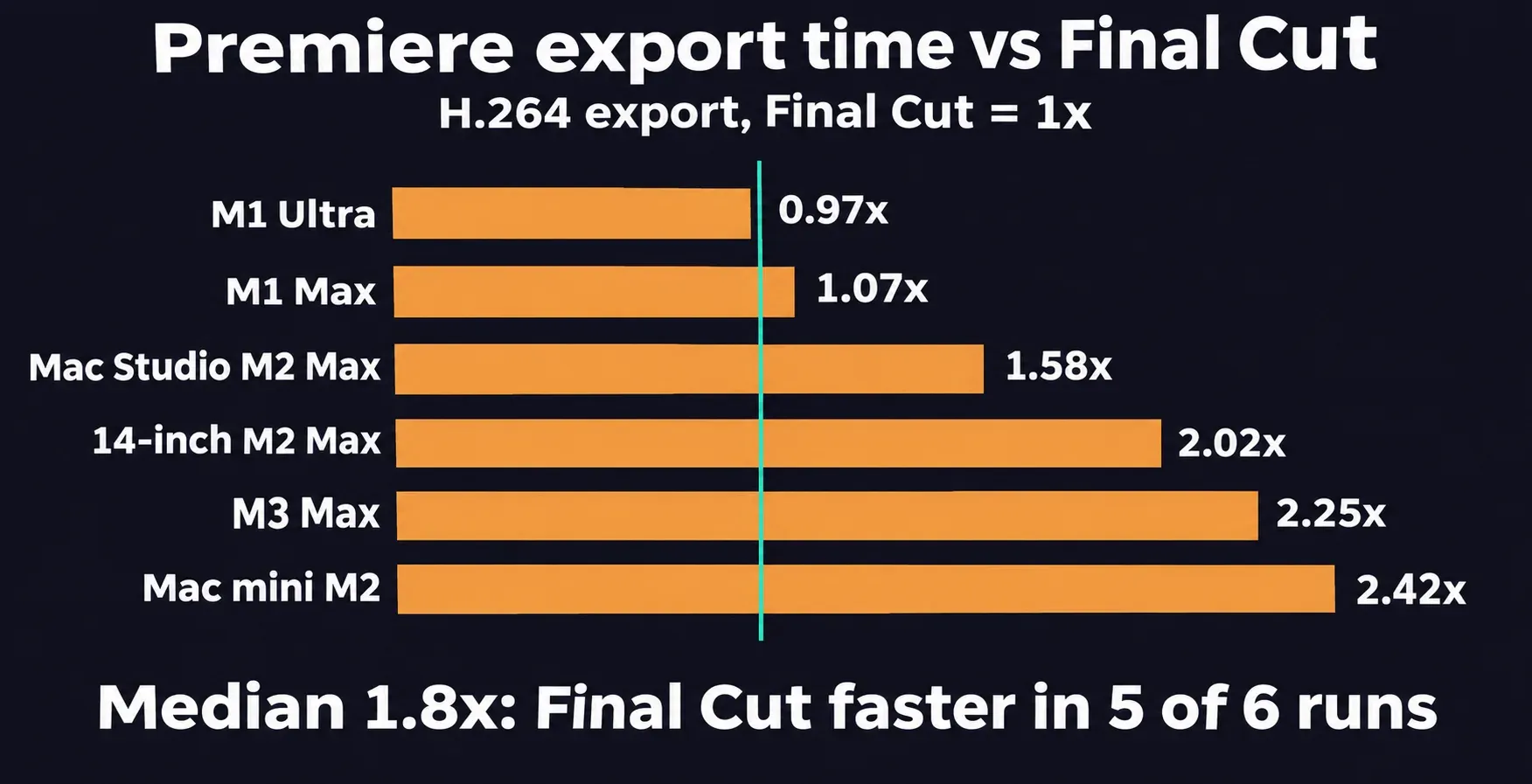
Change the codec and the gap moves. In the Simon Says set, exporting the same H.264 timeline to ProRes 422 took 20 seconds in Final Cut and 1:35 in Premiere, and a 5K RED RAW timeline took 1:48 against 4:28. H.264 exports from the other two sources went Premiere's way: 30 seconds against Final Cut's 50 for a stabilized 1:18 ProRes timeline, and 3:05 against 3:47 for the RED timeline. Simon Says puts that down to Final Cut not being the most optimized for H.264.
Larry Jordan's tests point the same way on heavier work. In his November 2024 comparison of Final Cut Pro 11 and Premiere 25 on an M4 Pro Mac mini and an M2 Max Mac Studio, Final Cut rendered a ten-minute 4K project of complex effects roughly 5x faster on both. A simple ten-minute project of cuts, dissolves and still titles split the win: Premiere on the Mac Studio, Final Cut on the Mac mini. Multicam showed the widest gap. Final Cut streamed 40 UHD ProRes 422 clips at full resolution using 2.2GB of RAM, while Premiere used 42GB to stream 30 and started dropping frames after 10 to 15.
His August 2025 export test on an M2 Max Mac Studio with 64GB and macOS 15.6.1 was close. Exporting a 30-minute ProRes 4444 project to ProRes 422, DaVinci Resolve 20 finished first, Final Cut seven seconds later, and Premiere took 18 seconds longer. A matching project on DVCPRO HD media finished fastest in Premiere.
My verdict: on a Mac, Final Cut's speed is a real advantage for multicam and effects-heavy timelines, where the published gaps run to several times. For a plain H.264 delivery it's usually a minute or two on a long timeline, and I wouldn't change editors, or a team's workflow, for that alone.
Sharing a project with other editors
Premiere has two built-in ways to share. Adobe's guide to Team Projects and Productions describes Team Projects as multiuser collaboration with the project file stored and managed in the cloud. Productions split long-form work into smaller projects. With Productions, everyone needs access to the same media, through mirrored drives or shared local or cloud storage.
Apple's listing describes XML import and export for third-party workflows like color grading and sound mixing, and roles metadata for exporting audio stems. I'd send a Final Cut edit onward as a finished file, a set of stems, or an XML for the colorist or mixer. If a co-editor has to change the cut itself, I'd agree on one editor before the first day of editing rather than translate the timeline back and forth.
Moving a cut between the two apps
Neither app opens the other's project. Each direction goes through XML and a separate translator, and some of the edit can fall out on the way.
Final Cut Pro to Premiere
Adobe's guide to importing Final Cut projects says Premiere can't directly import Final Cut's .fcpxml, so it has to be converted first:
- Export the project from Final Cut as an .fcpxml file.
- Convert it with the XtoCC tool into an XML that Premiere can read.
- In Premiere, choose File > Import, find the converted XML, select it and click Open.
- Check linked media and edit points. Adobe warns that some complex effects, transitions and third-party plugins may not transfer correctly.
Premiere to Final Cut Pro
Premiere exports Final Cut Pro XML, and SendToX translates it for Final Cut. It's a US$29.99 Mac App Store app from Intelligent Assistance and needs Final Cut Pro 10.0.6 or later. Its help pages set out the preparation:
- Keep the media online. Save with Cmd+S on a Mac or Ctrl+S on Windows, and relink any offline clips. The files should keep identical drive names, folders and filenames. Between two Macs, consolidate them to one external drive first; with both apps on the same Mac, the paths already match.
- Flatten multicam clips. Premiere skips multicam sequences in this export, so choose Multi-Camera > Flatten, or deselect Multi-Camera > Enable. Replace any After Effects compositions with rendered video files.
- Export the XML. Choose File > Export > Final Cut Pro XML, name the file and save it. Read the FCP Translation Results log Premiere writes alongside it.
- Translate it. Drag the XML onto the SendToX app or its Dock icon. If Final Cut is already running, SendToX imports the result straight away; if not, choose Send to Final Cut Pro. Video clips connect above the primary storyline and audio below it, each with a role named after its Premiere track.
- Review the to-do markers. In Final Cut, open the Timeline Index and click Tags. SendToX puts red to-do markers on the items it changed or substituted.
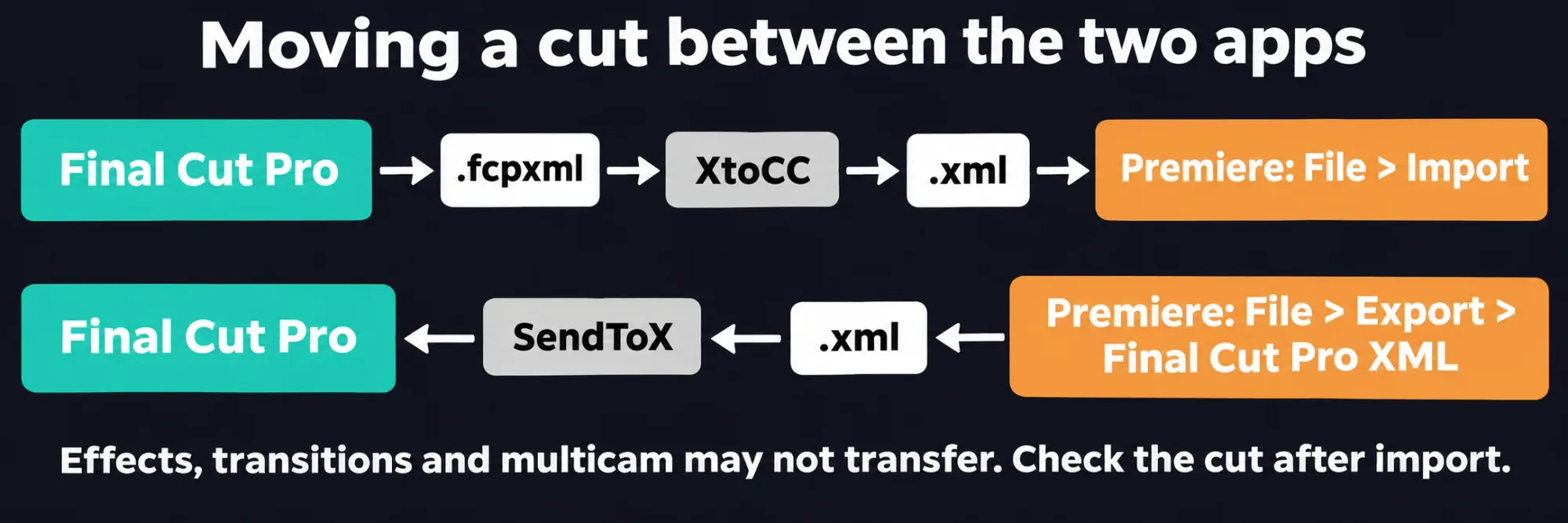
Adobe's own notes on Final Cut Pro XML export add that merged clips become nests, and that audio pan, gain and levels, along with complex effects and transitions, may not transfer accurately. I'd send the XML with a reference export of the approved cut and keep the native project on both sides, because neither translator promises an exact copy.
Play the translated cut before anyone edits it
When the cut opens in the other app, play it against the reference export from start to end. Watch the frames on either side of each edit, listen for dialogue that drifts out of sync and look for titles or effects that came through as placeholders. If the color work didn't make the trip and the shots no longer match, even out the color between shots before the next editor starts work.