After Effects vs Premiere Pro: which one you need
Premiere cuts footage into a finished video; After Effects builds animation and composites. See which tasks belong where, how Dynamic Link and .mogrt templates connect them, what to hand off, and what one app or both cost on US plans.
Adobe Premiere (formerly Premiere Pro) is where you cut footage into a finished video; After Effects is where you build animation and composite visual effects, layer by layer. If you trim interviews, lay music, even out color and export, Premiere covers the job by itself. Add After Effects when a shot needs a designed animation or a composite, and budget US$45.98 a month for the pair on US annual plans.
I'd start with Premiere and add After Effects the first time a project asks for something the timeline can't build. That way the first subscription pays for the work you do every week. If most of your work is motion design for other people's edits, flip the order and start in After Effects.
The task decides which app opens first
Adobe's own comparison of the two apps says both can cut and splice clips, but each is optimized for a different part of post-production: Premiere for cutting, arranging and enhancing video you've already shot, After Effects for motion graphics and visual effects. In practice, the task in front of you picks the app.
| Task | Open | Why |
|---|---|---|
| Trim pauses, arrange shots into a story | Premiere | The timeline holds the whole video, with dialogue and music on their own tracks |
| Sync recorded audio, set levels, add music | Premiere | Audio editing and sync are part of the edit |
| Match color between shots | Premiere | Correction, grading, scopes and LUTs work across the sequence |
| A plain title or lower third | Premiere | Its text tools cover it without a second app |
| Kinetic type, 3D text, an opening credits sequence | After Effects | Animated text layers and 2D or 3D motion graphics |
| Composite a VFX shot or rotoscope a subject | After Effects | Several images composited into one shot, with rotoscoping to isolate a subject |
| A branded graphic you'll reuse in many edits | After Effects, then Premiere | Build it once and fill it in with a Motion Graphics template |
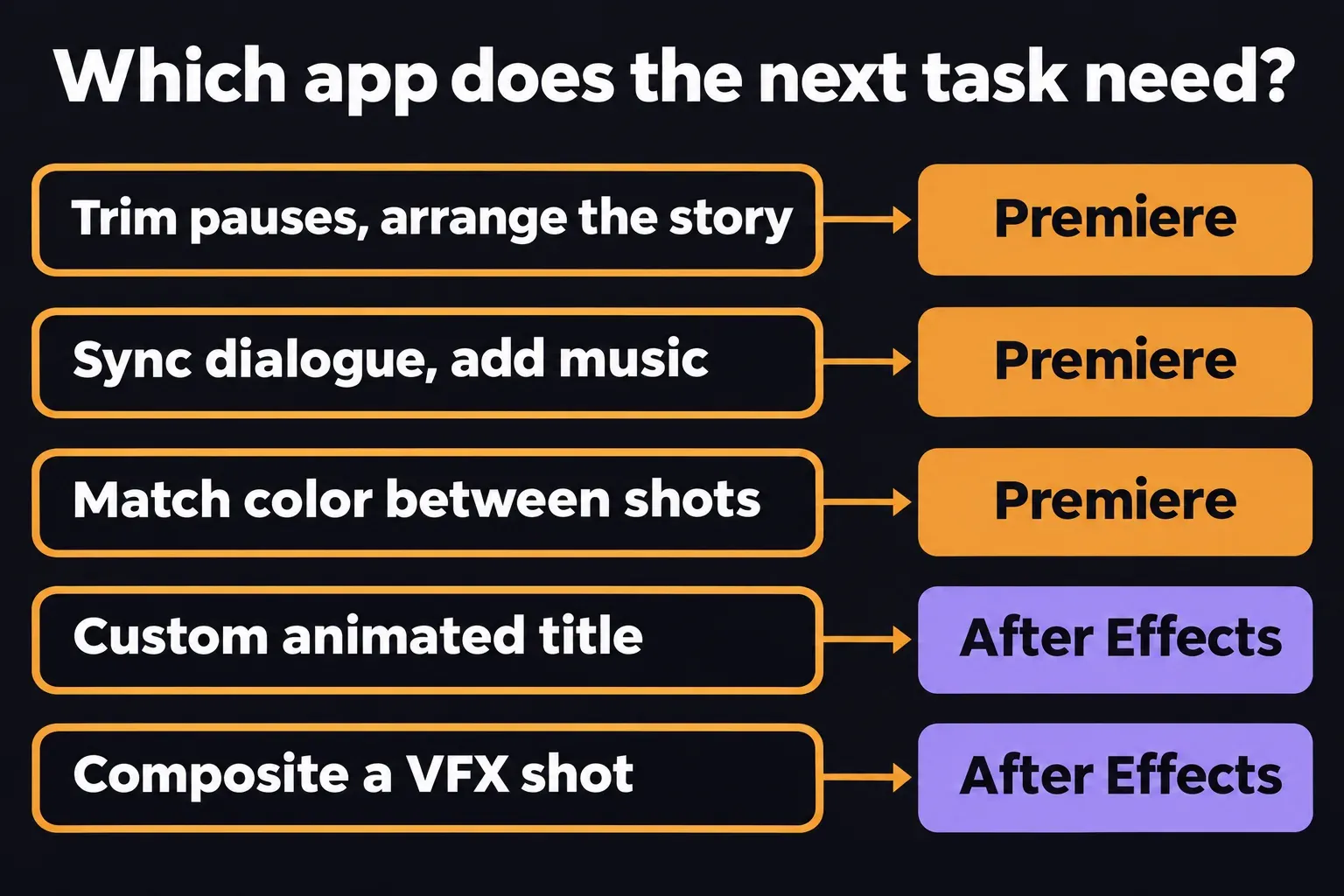
A title on its own isn't a reason to subscribe twice. Premiere can add titles and lower thirds and animate text with keyframes on the timeline. I'd move a title to After Effects when it turns into a design with several layers moving together, or when the same graphic has to appear in every episode.
Lock the cut before you animate
Lock each shot's length in Premiere first. Animation is timed to frames, so a graphic built before the edit settles has to be retimed every time the cut moves. That's why the usual order runs Premiere, then After Effects, then back to Premiere for the finish.
Take a two-minute product video. In Premiere, you split and trim the talking-head clips, place the b-roll and lay the music under the dialogue. Once the client approves the timing, the three shots that need animated product callouts go to After Effects, and everything else stays on the Premiere timeline.
The bridge between the apps is Dynamic Link. In Adobe's guide to working between After Effects and Premiere, a linked After Effects composition appears in Premiere as a clip, and a linked Premiere sequence appears in After Effects as a footage item. You edit the source in one app and see the result in the other, with no export in between.
Send shots to After Effects with Dynamic Link
Check the versions first. Adobe's Dynamic Link guide requires the same version of After Effects and Premiere and says the link won't work on a mismatch, so when you update Premiere, update After Effects in the same sitting.
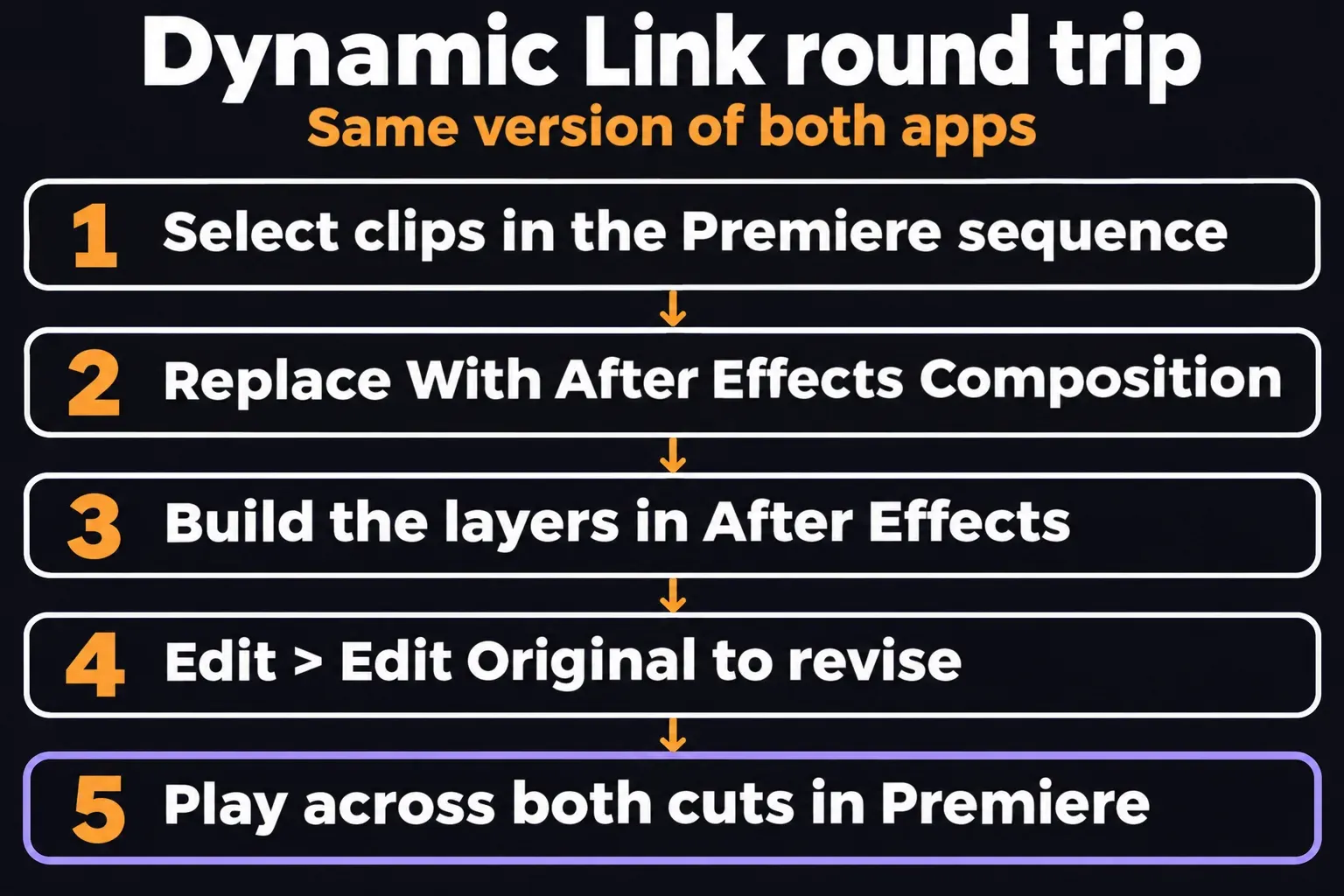
- Select the clips. In the Premiere sequence, select the clips you want to rebuild in After Effects.
- Replace them with a composition. Right-click any of the selected clips (Control-click on a Mac) and choose Replace With After Effects Composition. After Effects opens if it isn't running already, and the new composition inherits the sequence settings from Premiere.
- Build the shot. Add the layers, animation or composite in After Effects, and save that project next to the Premiere project.
- Revise from Premiere. Select the linked clip in the timeline and choose Edit > Edit Original. Your changes show up in Premiere, which stops using any preview files rendered before them.
- Play across both cuts. Back in Premiere, play from a second before the linked clip to a second after it.
For a composition someone has already built, go the other way: choose File > Adobe Dynamic Link > Import After Effects Composition, pick the .aep file and select one or more compositions.
Heavy compositions can slow playback in Premiere. Adobe's guide suggests taking the linked composition offline, disabling the linked clip for a while, or swapping it for a rendered file with Clip > Render and Replace. I'd use Render and Replace once a shot is approved, and keep the .aep with the project, because any later change still starts in After Effects.
Build a reusable graphic as a .mogrt
For a solo editor, the place After Effects pays off most is a graphic that repeats: a branded lower third in every episode, a chapter title, an end card. Build it once in After Effects and export a Motion Graphics template, a .mogrt file packaged for customization in Premiere. For a template made in After Effects, Premiere shows only the controls its author exposed, so the design stays locked while the text and colors you chose stay editable.
In After Effects, the Essential Graphics panel holds those controls. Adobe's guide to creating Motion Graphics templates puts the Export Motion Graphics Template button at the bottom of that panel and offers three destinations. Creative Cloud Libraries and the Local Templates Folder make the template available in Premiere; a file saved to a Local Drive isn't available there until you install it.
In Premiere, the steps are short:
- Choose Window > Graphics Templates. A template saved to your Creative Cloud Libraries is already available there.
- For a .mogrt file, click the install icon at the upper right of the panel and select the file, as Adobe's install guide shows. It appears under My Templates.
- Drag the template onto a video track in your sequence.
- Select the clip and change its exposed settings in the Properties panel.
If the author set protected regions, you can lengthen the clip in Premiere and the intro and outro animation keep their duration. That's what lets one lower third fit a three-second name and a ten-second quote.
Check one condition before you hand a template to someone without After Effects: some templates need it installed to customize. Adobe keeps a template independent of an After Effects install when it uses only the Classic 3D renderer and none of Dynamic Link footage, FLV footage or third-party plug-ins. All bundled effects qualify except Camera-Shake Deblur, Synthetic Aperture Color Finesse, Maxon CINEWARE, Puppet and Warp Stabilizer. The export dialog has a Warn me if After Effects needs to be installed option under Compatibility that flags the problem before the file leaves your machine.
To change the design later, open the .mogrt in After Effects with File > Open Project, extract it to a folder, edit it and export it again. I'd make a template for any graphic that appears more than twice, because typing a new name in Properties beats a Dynamic Link round trip per episode.
Choose what the next person receives
When an editor, client or colleague takes over, the file you send decides what they can still change.
- The After Effects project with its media. They can change anything, but they need After Effects and every source file. Send the project and all its footage in one folder; a project that arrives without its files opens to missing footage, the After Effects version of media offline in Premiere.
- A Motion Graphics template. They change the exposed controls in Premiere and nothing else.
- A rendered shot. A video file plays in any edit, Premiere or not, but every change goes back to whoever holds the source project.
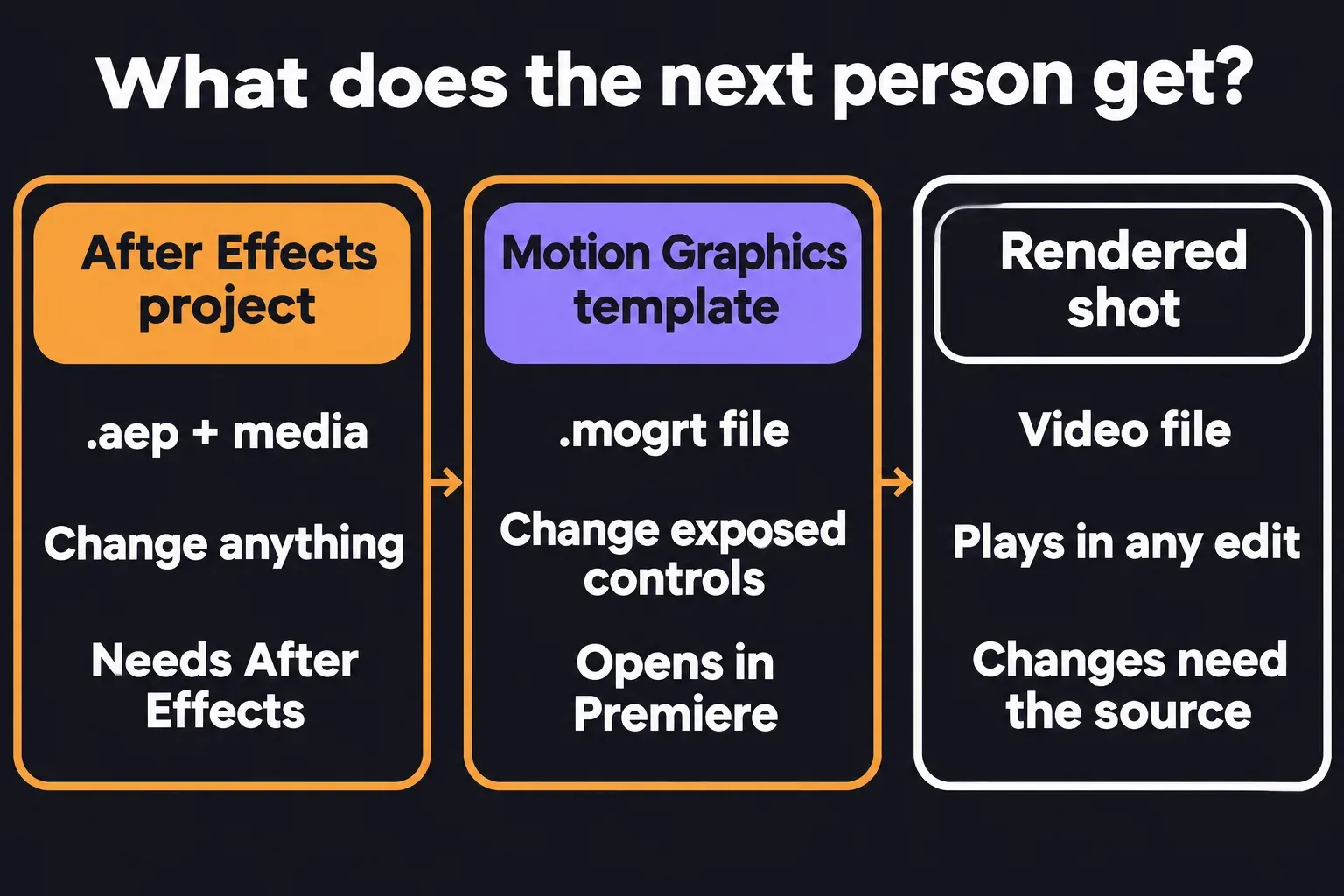
For a client who cuts in Premiere, I'd send a .mogrt for the recurring graphics and a rendered file for one-off effects shots, and keep the .aep on my side. They get what they can change without learning After Effects, and I keep what only I should touch.
What one app or both will cost
On Adobe's US pages, Premiere and After Effects each cost US$22.99 a month on a single-app annual plan billed monthly, and the After Effects plan includes Adobe Express Premium. Creative Cloud Pro includes both among its 20+ desktop and mobile apps, alongside Photoshop, Illustrator and Audition.
| Plan | Per month | First 12 months |
|---|---|---|
| Premiere | US$22.99 | US$275.88 |
| After Effects | US$22.99 | US$275.88 |
| Both single-app plans | US$45.98 | US$551.76 |
| Creative Cloud Pro, new subscribers | US$34.99 for 3 months, then US$69.99 | US$734.88 |
The Creative Cloud Pro offer applies to first-time subscribers who buy from Adobe and requires a 12-month commitment. For these two apps alone, the pair of single-app plans costs US$183.12 less over the first year and US$24.01 a month less once the offer ends. I'd pick Creative Cloud Pro only if you'll also open Photoshop, Illustrator or Audition most weeks. These are US rates before tax.
Each annual plan is a 12-month commitment, and under Adobe's US subscription terms, cancelling after the first 14 days costs half of what's left on the contract (30% of the annual commitment in California).
Play the linked shots before you export
Whichever route you took, play the finished sequence in Premiere through every linked clip, template and rendered shot, from a second before each one to a second after. Watch for a jump in timing at the cuts and listen for audio that drops out. If a composite looks brighter or warmer than the shots around it, even out the color between shots, then export and watch the file once more where it'll be seen.