DaVinci Resolve vs Premiere Pro: which editor fits your work
Pick Resolve's free edition for solo editing on a budget, or Premiere when the next editor expects a Premiere project. Compare costs, free-edition limits, requirements, 18 published export tests and the XML handoff.
Pick DaVinci Resolve's free edition if you edit alone, pay for your own software and can finish inside its limits. Pick Adobe Premiere (formerly Premiere Pro) when the next editor expects a Premiere project, or when your graphics already live in After Effects. Neither one exports faster across the board, so I wouldn't let a speed chart make this choice.
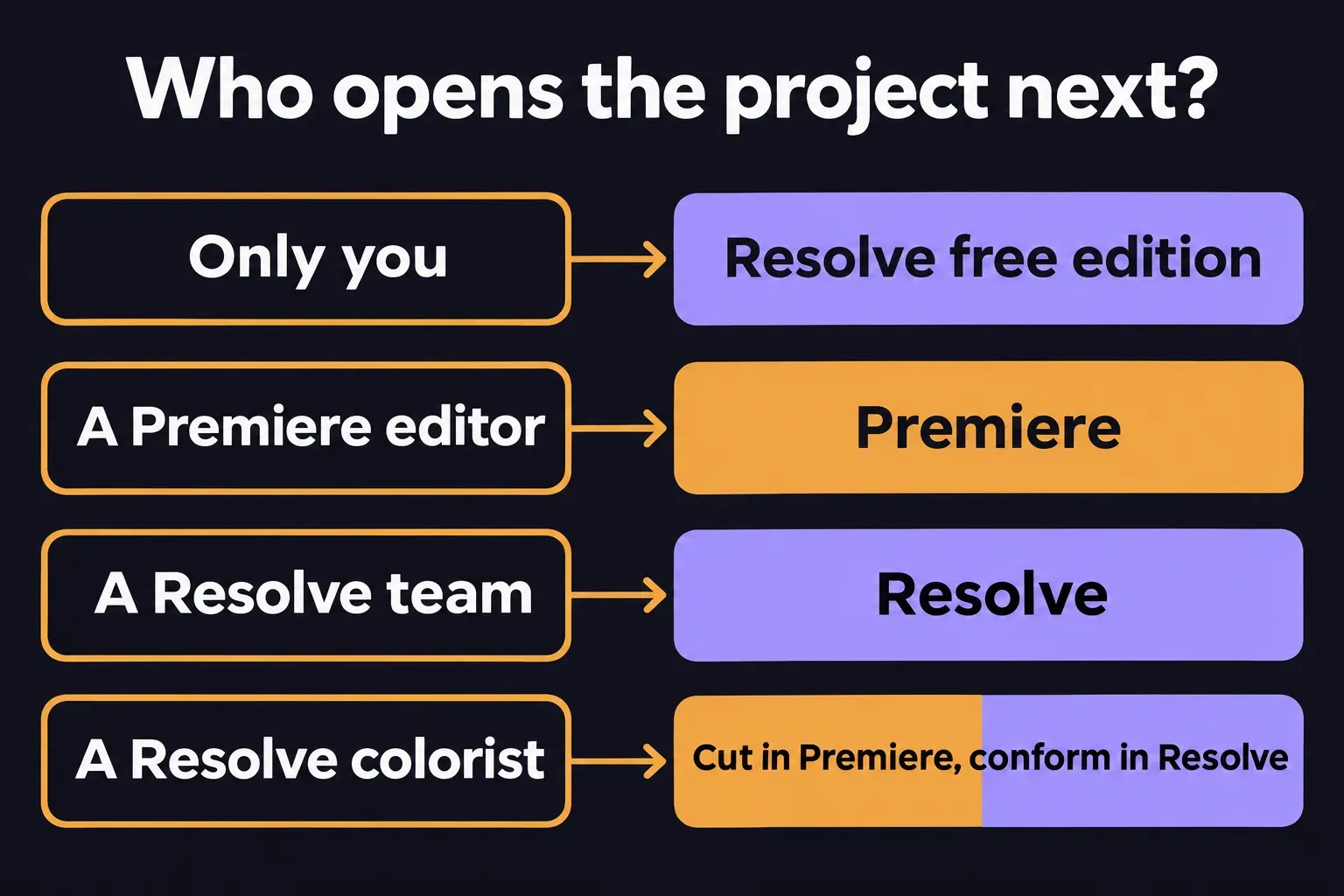
The question I'd ask first is who opens the project after you. A solo editor gets a full editing, color and audio workspace from Resolve for free. Someone handing a cut to a Premiere team saves a translation step, and a conform check, by staying in Premiere.
Choose by who opens the project next
| Your situation | My pick | Why |
|---|---|---|
| You edit alone on a tight budget | Resolve, free edition | Cutting, color, effects and sound in one project with no subscription |
| The next editor works in Premiere | Premiere | They open the native project with its titles and effects intact |
| Your team already shares Resolve projects | Resolve | Its project libraries handle local and remote collaboration |
| You cut, and a colorist grades in Resolve | Premiere, then a conform in Resolve | Budget time to check the translated sequence against a reference export |
That last row is common. Simon Says notes that professionals often use Resolve only for color, syncing it with their main editor through XML. It works, but the conform is a stage of its own: somebody has to confirm that every cut, speed change and effect survived the trip. Settle who'll do that before the first cut.
Which one is easier to learn? Simon Says puts the difference in design: Premiere was built as an editor first, while Resolve grew out of a color suite and runs its effects on nodes, which take longer to learn and pay back in control. For a first project of clips, music and a title, both timelines are manageable; the nodes come in once you start grading or compositing.
What each one costs
Resolve 21 comes as a free edition and a paid Studio edition for Mac, Windows and Linux. Blackmagic's page lists Studio at US$236, down from US$295, and PCMag describes Studio as a one-time payment. Desktop Premiere is membership-only, at US$22.99 a month on the US single-app plan with an annual commitment billed monthly, or US$34.49 month to month.
Twelve annual-plan payments come to US$275.88, which is more than the discounted Studio price. The annual plan also carries an exit cost: under Adobe's US subscription terms, cancelling after the first 14 days costs 50% of what's left on the year. If nobody else opens your projects, I'd start in the free edition and buy Studio only when a project runs into one of the limits below.
Finishing tools: one app or a suite
Resolve splits the work into pages: Cut and Edit for the timeline, Fusion for effects and motion graphics, Color for grading, Fairlight for sound, plus Media and Deliver. Everything stays in one project, so a late trim doesn't send you back to another app. I'd choose Resolve when color is the main job, because the Color page sits next to the edit rather than in a separate program.
Premiere covers the same finishing stages inside the editor. Adobe's Premiere page lists color wheels, curves and scopes, along with audio mixing, noise reduction and dialogue enhancement. For an interview with a few cutaways, you can even out the color between shots, grade the look and lay music under the dialogue without leaving the timeline.
Motion graphics split the two differently. Adobe draws the line between Premiere for cutting and enhancing footage and After Effects for motion graphics and visual effects. Resolve keeps that work on its Fusion page. If a motion designer already builds the show's graphics in After Effects, I'd keep the edit in Premiere rather than rebuild their workflow.
Where Resolve's free edition stops
Blackmagic describes the free edition as working with virtually all 8-bit video formats at up to 60fps and Ultra HD 3840 x 2160. Studio adds 10-bit video up to 120fps beyond 4K, temporal and AI spatial noise reduction, text-based editing and Magic Mask. The Resolve 21.2 release notes add the practical limits:
- Output: the free edition masters and exports at Ultra HD or lower, even when the source media is larger.
- GPU: it uses a single processing GPU on Windows and Linux.
- Studio-only tools: multiple GPUs, motion blur, temporal and spatial noise reduction, several AI tools, HDR tools, the camera tracker, voice isolation, and surround and immersive audio.
Collaboration isn't on that list: the free edition includes multi-user collaboration. If your camera records 10-bit or high-frame-rate video, open a few of those clips in the free edition before you commit a project to it. If the cut needs noise reduction or voice isolation, price in Studio from the start.
System requirements side by side
| Platform | Premiere | Resolve 21.2 |
|---|---|---|
| Mac | macOS Sonoma 14; 8GB RAM minimum, 16GB unified memory recommended on Apple Silicon | macOS 15 Sequoia or later on an Apple Silicon Mac; 8GB, or 16GB with Fusion |
| Windows | Windows 11 v24H2; 8GB minimum, 16GB for HD, 32GB or more for 4K | Windows 10 Creators Update; 16GB, or 32GB with Fusion; a GPU with at least 4GB VRAM and OpenCL 1.2 or CUDA 12.8; NVIDIA Studio driver 581.57 or newer |
Resolve also runs on Windows 11 for Arm with Snapdragon X Elite or NVIDIA RTX Spark processors, and on Rocky Linux 8.6 with 32GB of memory and a discrete GPU. Premiere is Windows and macOS only. Since Resolve 21.2 asks for an Apple Silicon Mac, an Intel Mac falls below its minimum. Adobe's system requirements also recommend a fast internal SSD for the app and cache, with a separate fast drive for media.
Minimums tell you the app will open, not that your footage will play smoothly. Before moving a series, build a short sequence from the same camera files with the heaviest effect you expect to use, and export your real delivery format in each app.
Export tests: the leader changes with the workload
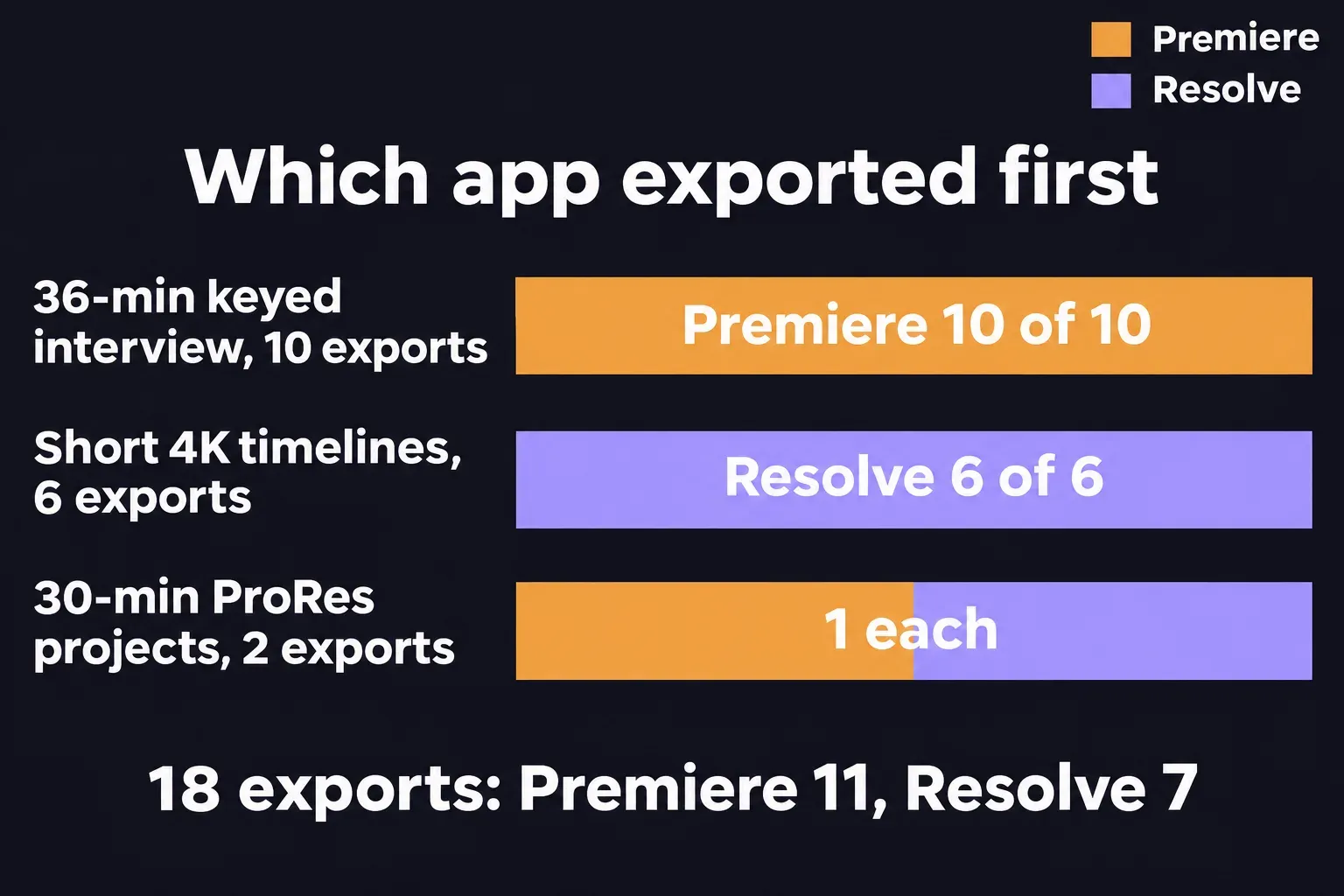
I pooled three published head-to-head comparisons: 18 exports in all. Premiere finished first in 11, Resolve in 7. The split follows the workload, so I compare times within each test and don't average across them.
| Test | Machine | Exports | Result |
|---|---|---|---|
| ProVideo Coalition, Oct 2025: 36-minute 9:16 green-screen interview, keyed over PNG layers, basic color, to H.264 and ProRes 422 | Five Apple Silicon Macs, from an M4 Mac mini to an M3 Ultra Mac Studio | 10 | Premiere faster in 10 of 10; Resolve took a median 2.0x as long (range 1.4–3.3x) |
| Simon Says: three 4K timelines of 1:18 to 3:50, from H.264, ProRes 422 and 5K RED RAW, with transitions and color, to H.264 and ProRes | M1 Max MacBook Pro, 64GB; app versions not stated | 6 | Resolve faster in 6 of 6; Premiere took a median 1.5x as long (range 1.2–3.5x) |
| Larry Jordan, Aug 2025: two 30-minute projects to ProRes 422, each exported twice and averaged | M2 Max Mac Studio, 64GB, macOS 15.6.1; Resolve 20 and the 2025 release of Premiere | 2 | Split: Resolve first on the ProRes 4444 project with Premiere 18 seconds behind; Premiere first on DVCPRO HD |
On the long keyed interview, the gap was wide on every machine. The M3 Ultra Mac Studio exported the H.264 version in 4:28 in Premiere and 9:15 in Resolve. Simon Says' timelines were short, so its exports ran in seconds: the H.264 timeline went to ProRes 422 in 27 seconds in Resolve and 1:35 in Premiere. On exports that short, a few seconds either way moves the ratio a lot.
ProVideo Coalition also timed the built-in tools. Transcribing and captioning a 98-minute film was faster in Premiere on four of five Macs, while scene detection on a 24-minute promo was faster in Resolve on three of five. Premiere found 938 edits and Resolve 969, and the review didn't judge which list was more accurate. One more run stays out of my count: a 1-hour-43-minute awards show conformed into Resolve from a Premiere XML, where Resolve's export times kept climbing to between 30 minutes and an hour and the reviewer couldn't find the cause.
My verdict: export speed is a reason to tune a workflow, not to switch editors. Premiere led on the long, layered vertical job; Resolve led on the short 4K timelines with transitions and color. ProVideo Coalition and Jordan tested in 2025, on earlier releases than today's Resolve 21.2, and Simon Says doesn't date its run. If export time is a real cost in your work, time one representative sequence in both apps on your own computer.
Keep the project usable when it changes hands
Both apps can share a project, in different ways. Premiere's Team Projects and Productions keep project updates in the cloud or split long-form work into smaller projects, and each collaborator still needs access to the media. Resolve's project libraries are built for real-time local and remote collaboration. Neither one packages the camera files for you.
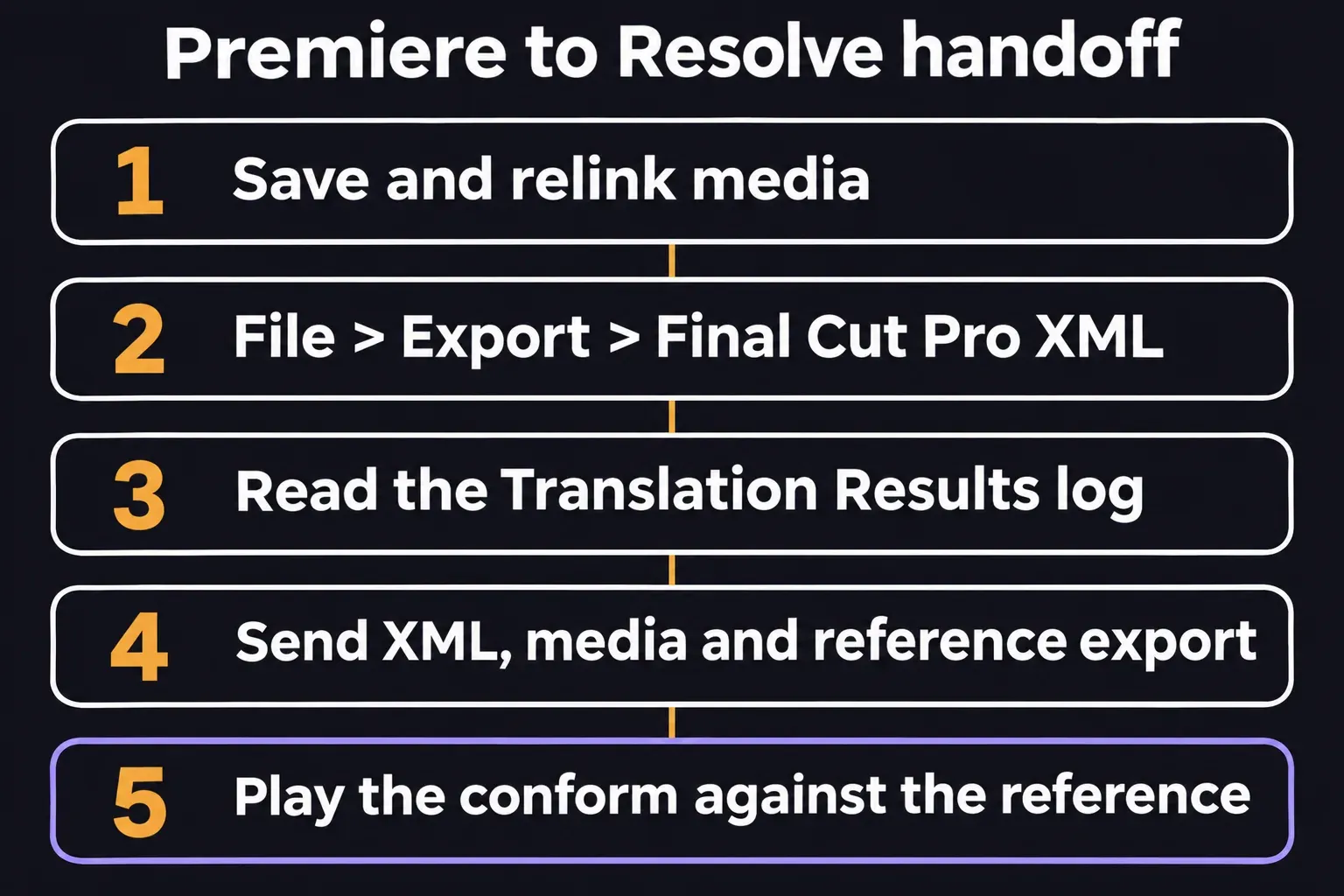
To send a Premiere cut to a Resolve colorist, Adobe documents the Final Cut Pro XML export:
- Save the project with Ctrl+S on Windows or Cmd+S on macOS, and relink any offline media.
- Choose File > Export > Final Cut Pro XML, pick a location and filename, and click Save.
- Read the FCP Translation Results log that Premiere writes for the export.
- Note what didn't carry over. Merged clips become nests, and audio pan, gain and levels, along with complex effects and transitions, may not transfer accurately.
- Send the XML, the original media and a reference export of the approved cut, and keep the native Premiere project as well.
Agree on versions before anyone opens a shared project in a newer release. Blackmagic's 21.2 notes say projects created or opened in 21.2 can't be opened in 20.3.2, and recommend backing up the full project library and the individual projects first. On the Premiere side, the guide to updating Premiere covers staying on the version your collaborator uses.
Check the conform before anyone finishes
When the rebuilt sequence opens on the other side, have the receiving editor play it against the reference export from start to end. Watch the frames on either side of each cut, and listen across every edit for dialogue that drifts out of sync.